

Before a customer purchase order enters your ERP, check the quote, quantities, revisions and duplicates. A practical workflow for Singapore SME teams.
Winning the order does not finish the administration. A customer sends a purchase order, a salesperson forwards it, and operations starts entering the details. If the attachment differs from the accepted quotation, a quick copy-and-paste can carry the mistake into purchasing, delivery and invoicing.
Here, an incoming customer purchase order (PO) is the buyer’s document that your business uses to prepare a sales order. It is different from the procurement PO your own company sends to a supplier. AI can help prepare the incoming information, while agreed checks determine what can move into the system.
Anchor the order to the accepted quotation
Find the quotation number, revision and customer account before comparing line items. A familiar total is not enough: a revised quote may change the product, delivery terms or quantity while leaving other details similar. Keep the PO and the accepted quotation accessible together.
Where the customer uses its own product code, use an approved mapping or ask the salesperson to confirm it. Do not reopen a technical substitution decision automatically at order-entry stage. Our guide to matching RFQs to catalogue products covers that earlier decision.
Check the details that affect fulfilment
For a Singapore SME supplying several branches or project sites, the billing account and delivery address may be different. Build the review around operational consequences, not simply whether every PDF field contains text:
- Customer and reference: verify the purchasing entity, account, PO number and related quotation. Identify any account hold that needs authorised review.
- Product and revision: compare the agreed item code, specification and approved alternative, if any. A similar description is not sufficient.
- Quantity and unit: distinguish pieces, boxes, sets and other pack sizes. Confirm the conversion against maintained product data.
- Commercial terms: compare currency, unit prices, discounts, extra charges and stated tax amounts with the agreed basis. Send differences to the responsible staff member.
- Delivery requirements: check the ship-to location, requested dates, split deliveries and special instructions. A customer’s requested date is not automatically your confirmed delivery commitment.
A pack-size mismatch can look like a valid order
In this illustrative example, a distributor quoted ten boxes containing ten pieces each. The customer’s PO says “100” but leaves the unit blank. Entering 100 boxes would create an order for ten times the intended piece quantity; assuming 100 pieces without checking also hides an unresolved instruction.
The workflow should flag the missing unit, show the quoted pack size and request confirmation. Once staff confirm the intended quantity, keep the original wording and the approved conversion. The benefit is a clear decision record, not an AI explanation that makes an assumption sound convincing.
Separate a repeat submission from an amendment
A PO may reach the shared inbox and a salesperson separately. A later email may resend the same attachment or contain a genuine revision. Check against existing records using the customer identity, PO reference and the document’s revision or content, following rules agreed for that customer.
Do not assume that storing an external reference automatically prevents duplicates. For example, Microsoft’s Business Central documentation states that its external document numbers are not checked for uniqueness. The behaviour must be verified for the ERP, configuration and integration actually in use.
A changed quantity, cancelled line or new delivery address should create a review task linked to the original order. Staff need to see what changed and whether the order has already been released or partly fulfilled. Do not silently overwrite a released order with the latest attachment.
Keep preparation, approval and ERP entry distinct
The workflow should make four stages visible. First, extract the request while retaining the source. Second, run explicit comparisons against the approved records. Third, have authorised staff resolve exceptions and approve the intended entry. Fourth, create or update the ERP record using permitted operations.
A review queue needs an owner and a reason for each hold, such as an unknown product code or price discrepancy. Staff should know which system contains the current decision. An approved order-entry record does not itself authorise dispatch, credit approval or a change to customer terms.
Plan for a transfer that succeeds without a reply
An ERP request can time out after the system has already created the order. Sending the same creation request again without checking can produce another order. Keep the source reference, approved revision, integration request identifier and returned ERP number together.
Where supported, an idempotent request lets the same operation be retried without repeating its effect. AWS explains this design using unique request identifiers. Your integration must verify whether the ERP supports that behaviour; adding a reference field alone does not provide it.
If the outcome is uncertain, reconcile it before retrying or route it to staff. Test simultaneous submissions as well as repeated emails. The process needs an agreed way to prevent two workers creating the same order at once, and to recover when only part of a multi-step transfer succeeds.
Pilot with exceptions and measure the whole handover
Use redacted examples of straightforward orders, missing units, revised POs, duplicate attachments and failed transfers. Compare the approved result with a staff-checked reference. Track review time, unresolved holds, duplicate sales orders and successful ERP entries, rather than counting only documents read.
Where ADSM fits
ADSM can assess this handover as part of its automation workflows for distributors and engineering businesses. AI document processing addresses the incoming information, while AI integration services assess permitted system operations, field mappings and recovery behaviour.
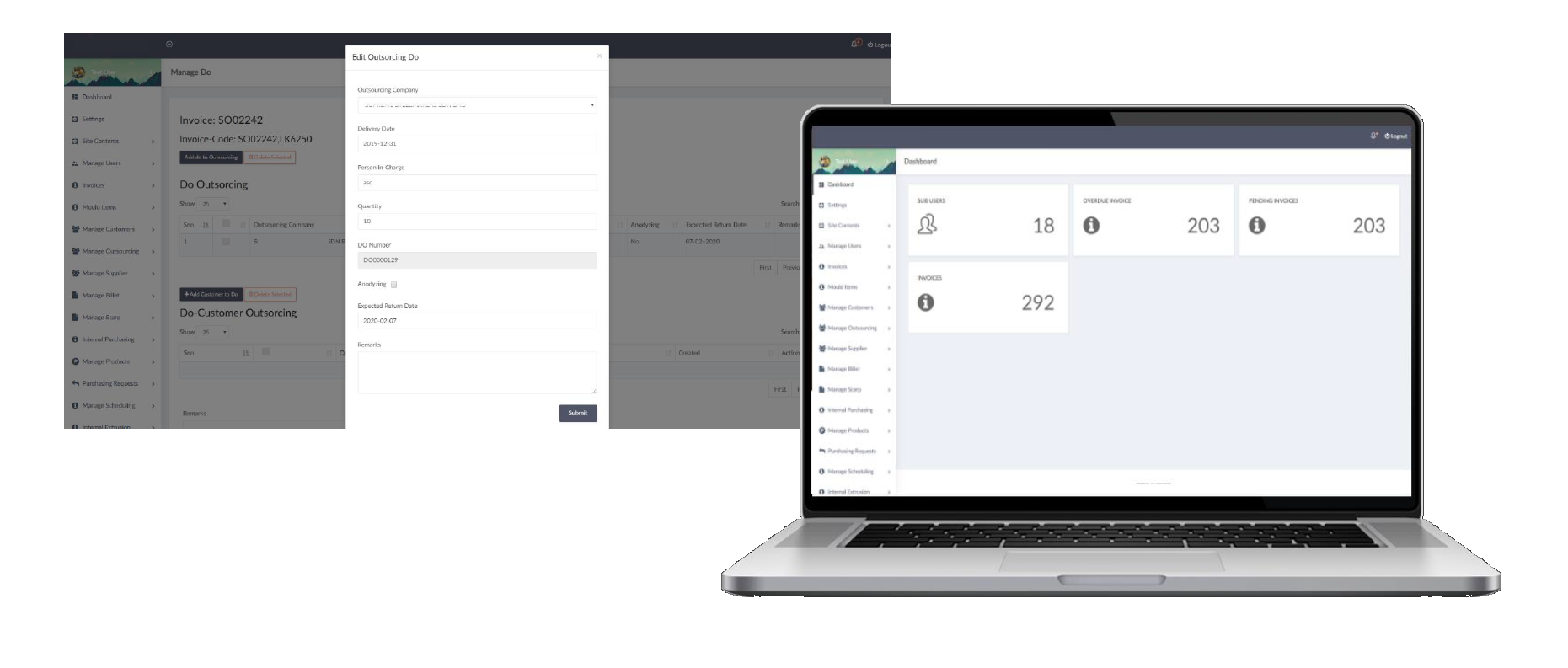
The aim is to work with the records and approvals your team already uses. An existing ERP system may support part of the workflow, but extraction, exception review and automated writeback require their own scope and testing. The example interface below is an existing business-system view, not evidence of a completed AI PO integration.
Begin with a redacted customer PO, its accepted quotation and the fields your team enters today. Those three items make it easier to define the checks, approval owner and smallest useful pilot before expanding the automation.